

Annotate a photo or video
Updated September 4, 2026
On this page
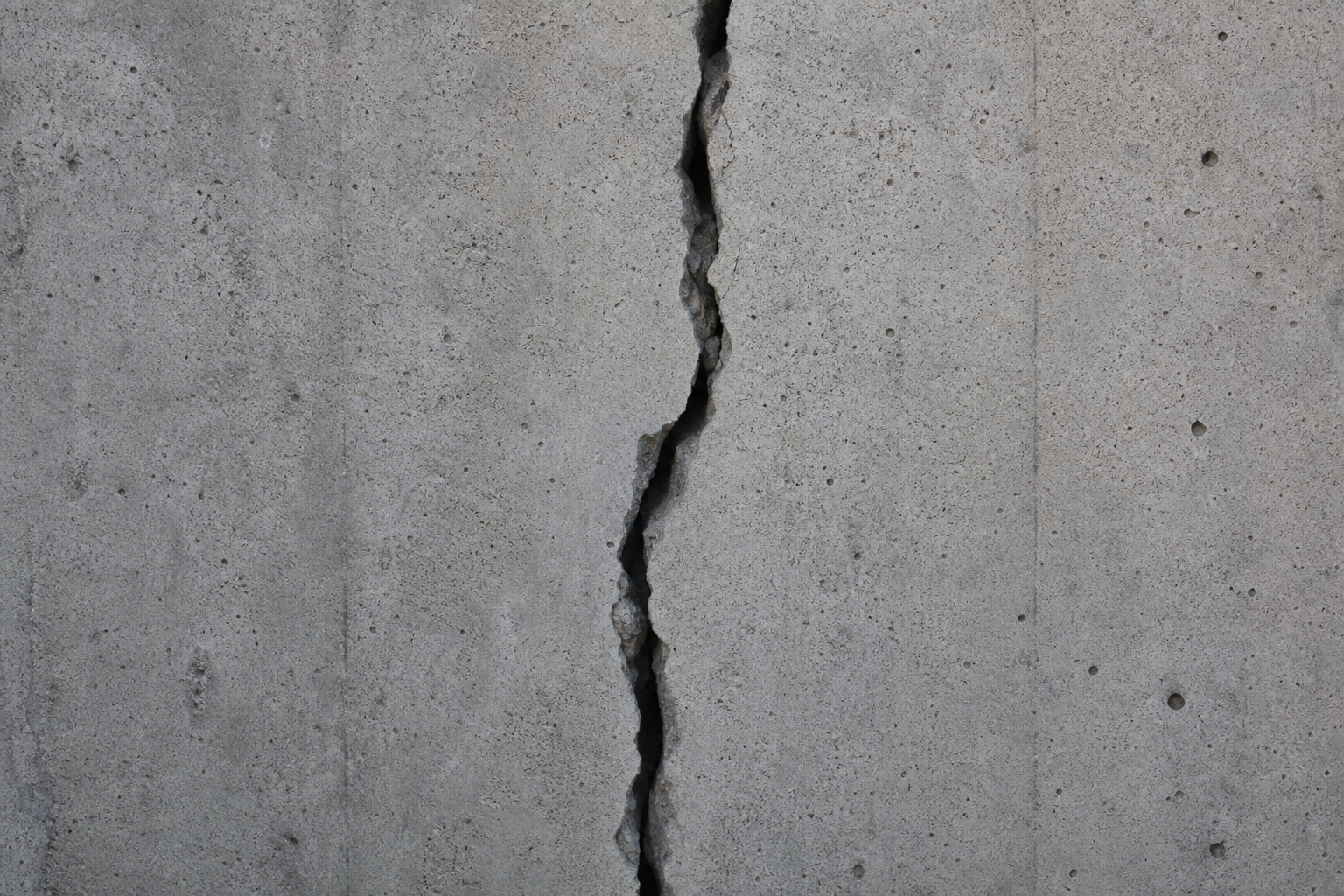
Annotations let you mark up a photo or video in the field so the defect is obvious later — a crack, a missing bolt, a measurement on the wall. Draw in the app. On the web, saved annotations show on the preview but cannot be edited.
On the web
In the sidebar, open Media.
Select a photo to open the preview. Saved annotations show on the image.
Open Details to read the file info. Annotations are view-only on the web — edit them in the app.
In the app
After capture, tap Annotate. Or open a saved photo and tap Edit annotations.
Use Select, Pen, Line, Arrow, or More (Rectangle, Ellipse). Pick a color and stroke, then draw. Line is tap-to-tap straight segments. For video, pause first — only Pen is available.
Tap Done (check) to keep your work. Photo drawings bake into the image. Video strokes are playback-only and do not appear in reports or PDFs.
Tips
- Line is tap-to-tap straight segments, not freehand. Arrow is a straight callout. More opens Rectangle and Ellipse.
- Text and Measure appear as chips after a supporting shape. Measure needs a two-point Line or Arrow and a one-time scale (known length + unit).
- Video annotation is Pen only, and you must pause first. Strokes are timed to playback and do not appear in reports or PDFs. Photo annotations bake into the image and show wherever that photo is used.
- Going back with unsaved changes asks Discard unsaved changes?
Need to capture first? See Capture photos and videos. Related: Add a description to a photo.
Was this article helpful?